Shopify line item properties, explained with examples

Short answer
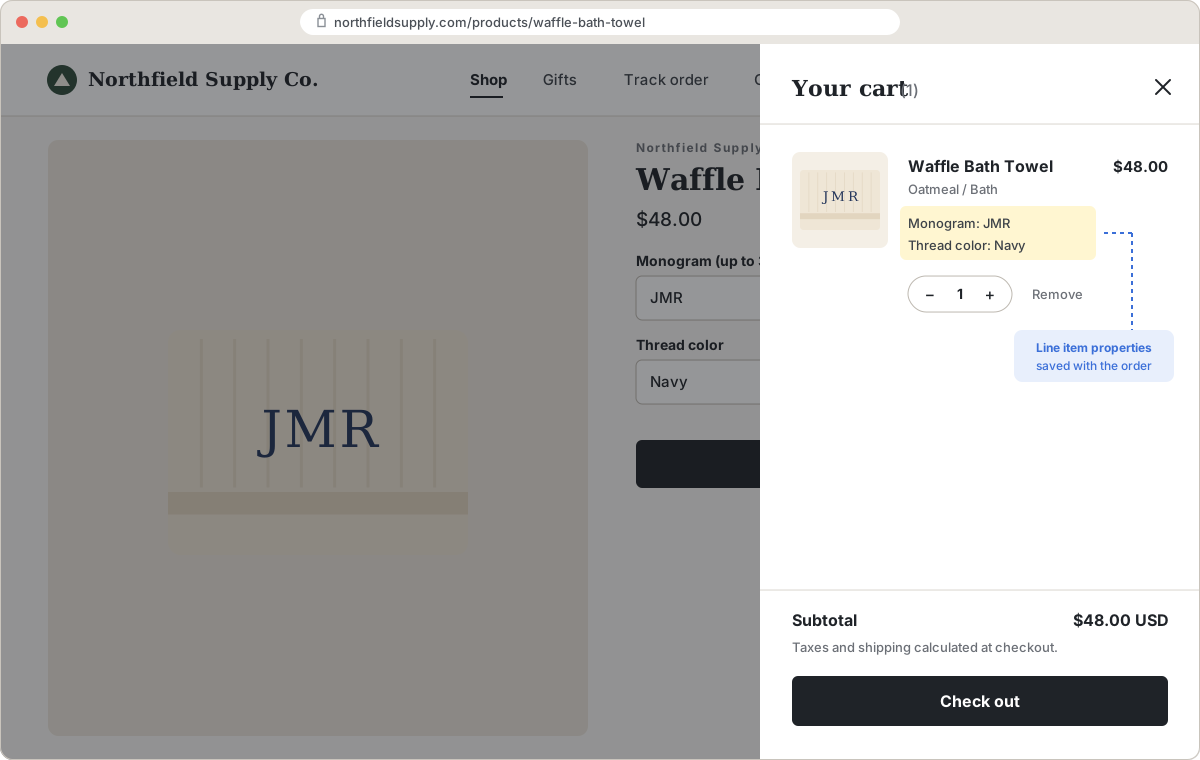
Shopify line item properties are extra name and value pairs attached to a cart item, like Monogram: ABC or Gift note: Yes. You collect them with properties[Name] fields in the product form (or the Cart API), and Shopify carries them to checkout and the order. They capture custom text, choices and notes without adding variants.
This guide covers the code-free and Liquid routes, where properties show up from cart to packing slip, and the limits you hit when you build them by hand.
What line item properties are
A line item property is a piece of text stored on one line of the cart, not on the product. Shopify's line_item reference describes them as a name and value pair that you can add, or let customers add, to a line item. Because they live on the cart line, the same product added twice with different values becomes two separate lines: one mug that says "Mom" and one that says "Dad". They don't create SKUs, don't touch inventory and don't change the price. They are the right tool for anything you don't stock separately, which is why we usually recommend them over squeezing personalization into variants (more on that in variants vs product options).
The code-free route
If you don't want to touch theme code, you have two options. Some themes include a basic custom text field block for the product page; check your theme editor's product template. Otherwise, a product options app adds the fields through the theme editor and saves what customers enter as line item properties (more on that below). For one or two plain text fields on a few products, a theme block is enough.
The Liquid route: a minimal example
Every property input needs a name of properties[Your name], and it must sit inside the product form, as Shopify's product template docs put it. The text between the brackets becomes the label customers see in the cart and at checkout, so write it the way you want it to read. Names are case- and spacing-sensitive: Gift note and Gift Note are two different properties.
Here is a text field, a dropdown, a checkbox and a hidden private property inside the standard {% form 'product', product %} tag. In Online Store 2.0 themes, the form usually lives in a section file such as main-product.liquid or a snippet it renders.
{% form 'product', product %}
  <!-- your theme's variant picker, quantity and buttons stay as they are -->

  <p>
    <label for="monogram">Monogram (up to 3 letters)</label>
    <input type="text" id="monogram" name="properties[Monogram]" maxlength="3">
  </p>

  <p>
    <label for="thread-color">Thread color</label>
    <select id="thread-color" name="properties[Thread color]">
      <option value="Gold">Gold</option>
      <option value="Silver">Silver</option>
      <option value="Navy">Navy</option>
    </select>
  </p>

  <p>
    <input type="checkbox" id="gift-note" name="properties[Gift note]" value="Yes">
    <label for="gift-note">Include a handwritten gift note</label>
  </p>

  <input type="hidden" name="properties[_source]" value="product-page">
{% endform %}
How each input behaves:
- Text field and select. The typed text or the selected option's
valueis saved.maxlengthstops typing past the limit in the browser. - Checkbox. When checked, it sends its
value(here, "Yes"). When unchecked, browsers send nothing, so the property is simply missing from the line. That is usually what you want: no gift note, no property. - Hidden input. Sends a fixed value with every add to cart. Useful for tagging where an order came from or which production template to use.
Make a backup copy of your theme before editing it, and test in a preview first.
Private properties (the underscore)
Start a property name with an underscore, like properties[_source], and Shopify hides it from customers at checkout (per the line_item docs). It still appears on the order in your admin, which makes underscore properties handy for internal data: a production code, a design ID, the page the item was added from.
The catch: checkout hides them, but your theme's cart doesn't know to. If your cart template loops over every property, customers will see _source: product-page in the cart. The loop in the next section skips them.
Showing properties in the cart
Most current themes already print line item properties in the cart page and cart drawer. If yours doesn't, or it shows the underscore ones, find the loop over cart.items in your cart template or cart drawer snippet and add something like this under each item's title:
{% for item in cart.items %}
  <!-- existing title, price and quantity markup -->
  {% unless item.properties == empty %}
    <ul class="line-item-properties">
      {% for property in item.properties %}
        {% assign first_char = property.first | slice: 0 %}
        {% if first_char == '_' or property.last == blank %}{% continue %}{% endif %}
        <li>{{ property.first }}: {{ property.last }}</li>
      {% endfor %}
    </ul>
  {% endunless %}
{% endfor %}
The slice: 0 filter takes the first character of the property name, and {% continue %} skips to the next property when that character is an underscore or the value is empty. Your theme may call the loop variable line_item or item; match whatever it already uses.
Where properties show up
| Place | Shown? | Notes |
|---|---|---|
| Cart page and cart drawer | If the theme renders them | Most current themes do. Underscore properties show too unless the theme skips them. |
| Checkout | Yes | Shopify shows public properties under the item and hides underscore properties. |
| Order in Shopify admin | Yes | All properties, including underscore ones, appear on the line item. |
| Order confirmation and other notifications | If the template includes them | Edit the template in Settings > Notifications and loop over the line's properties. |
| Packing slip | If the template includes them | Edit the template in Settings > Shipping and delivery > Packing slips. |
| Inventory and SKUs | No | Properties are text on the line, not stock. |
Adding properties to notifications and packing slips
Both templates are Liquid and give you each line item's properties.
- Open the template: Settings > Notifications for the order confirmation, or Settings > Shipping and delivery > Packing slips for the packing slip.
- Search the template for
properties. If it already loops over them, you may only need to check the underscore filtering. - If not, find the loop over the order's line items and note the variable name it uses for each item (often
linein notifications andline_itemin the packing slip). - Paste a properties loop under the product title, swapping in that variable name.
- Send yourself a test notification or print a slip from a test order to check it.
For a notification where the loop variable is line:
{% for p in line.properties %}
  {% assign first_char = p.first | slice: 0 %}
  {% if first_char == '_' or p.last == blank %}{% continue %}{% endif %}
  <br>{{ p.first }}: {{ p.last }}
{% endfor %}
On a packing slip, the same loop with line_item.properties works. You may want to keep underscore properties on the packing slip, since only your team sees it: just drop the first_char check.
Adding properties with the AJAX Cart API
Custom buttons, quick-add widgets and bundle builders often add to cart with JavaScript instead of submitting the form. The Cart API accepts a properties object on each item sent to /cart/add.js:
fetch(window.Shopify.routes.root + 'cart/add.js', {
  method: 'POST',
  headers: { 'Content-Type': 'application/json' },
  body: JSON.stringify({
    items: [
      {
        id: 123456789, // the variant ID
        quantity: 1,
        properties: {
          'Monogram': 'ABC',
          'Thread color': 'Gold',
          '_source': 'quick-add'
        }
      }
    ]
  })
})
  .then(response => response.json())
  .then(data => console.log(data));
The same rules apply: an underscore key is private, and Shopify splits items with different properties into their own lines. One thing to know if you later update a line with /cart/change.js: sending properties there replaces the whole properties object, so include every property you want to keep.
Limitations of doing it by hand
Hand-coded properties work, and for a simple text field on a few products they are often all you need. These are the limits you run into as requirements grow:
- No price. A property is text. Picking "Gift wrap: Yes" doesn't add a cent. Charging for it needs a separate product, a variant, or an app (see charging for product add-ons).
- No inventory or SKU. If you need to count gift boxes, a property won't do it.
- Validation is only what HTML gives you.
required,maxlengthandpatternrun in the browser when the form is submitted. Nothing on Shopify's side checks them. - Quick add and quick view skip your fields. Buttons on collection pages, quick-view popups and upsell widgets often add the item without loading your product form, so a "required" monogram can arrive empty.
- No conditional logic. Showing a text box only after "Add engraving" is checked means writing and maintaining JavaScript.
- Switching themes leaves your code behind. A different theme starts from its own files, so you re-apply your edits each time. Shopify's built-in theme updates keep code edits unless they conflict with the new version, so check the fields after an update too.
- No edits after checkout. Editing an order in admin doesn't change its properties, so a typo in a monogram has to be handled with the customer outside Shopify's order editing.
- File uploads are rough. A file input works with
enctype="multipart/form-data"on the form, but there is no preview, little control over size or type, and an awkward experience for customers.
For customer file uploads done properly, see how to let customers upload files on Shopify product pages.
The app route: Infinite Options
We make Infinite Options, which builds the fields for you and saves everything the customer enters as line item properties. That means every place in the table above works the same way it does with hand-written code, including your order admin and packing slips. What it adds on top:
- Input types without code: text, multi-line text, number, date picker, dropdowns, radio buttons, checkboxes, color and image swatches, buttons, a font picker, switches and file upload.
- Conditional logic: show "Engraving text" only when "Add engraving" is Yes.
- Validation: required fields, maximum character length on text fields (customers can't add to cart over the limit), and minimum selections on checkboxes.
- Prices on choices: attach a price to a dropdown, radio, checkbox or swatch value, such as "Add engraving? Yes +$10". Text fields can't carry a price themselves, so you put the price on the choice and show the text box with conditional logic.
- Option sets assigned by rules: build a set once and apply it to all products, or by product, tag, vendor or type, including "is not" rules like every product except ones tagged Digital.
It starts at $12.99/month with a 14-day free trial (as of October 2026). For engraving, monograms and custom text in particular, see our guide to Shopify product personalization.
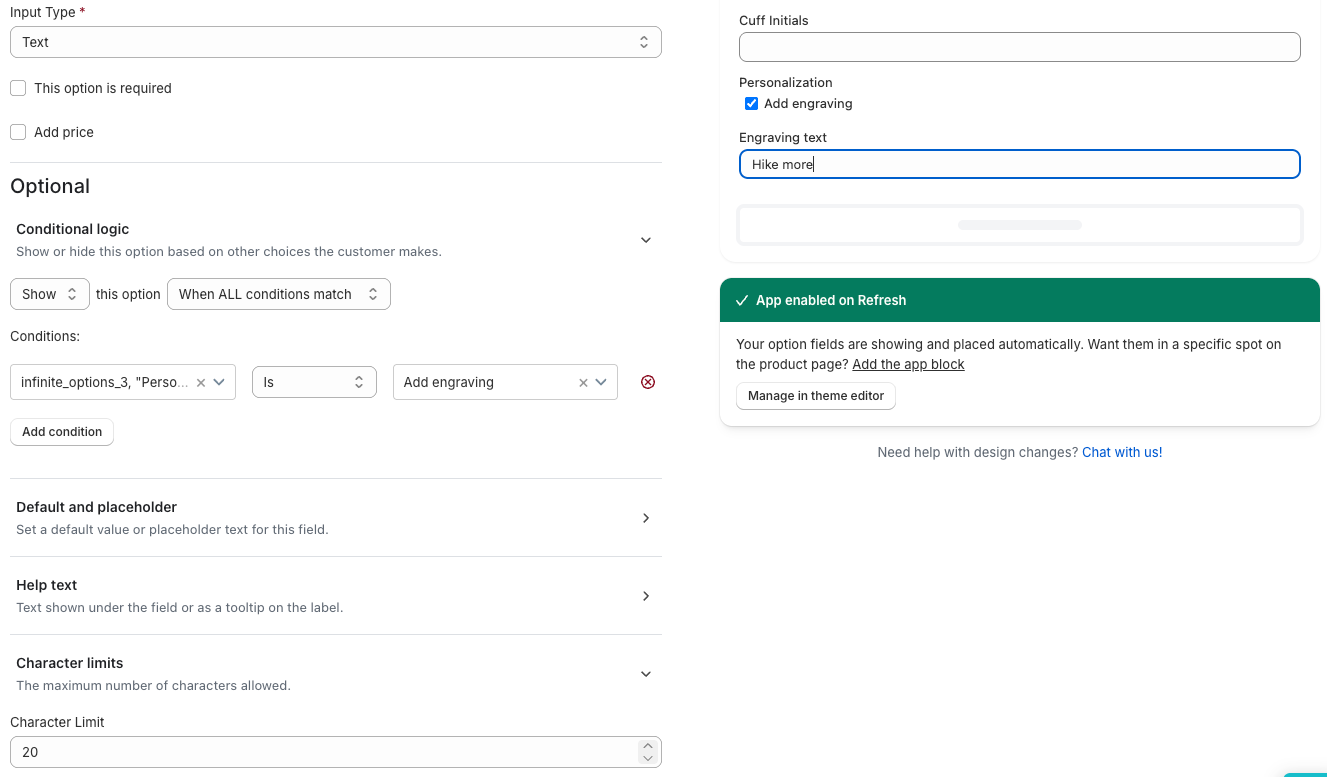
If the fields don't appear on your product page after installing, see why app options or upload fields don't show on your Shopify theme.
Which route to pick
- One or two free text fields, no price, few products: a theme block or the Liquid example above.
- Internal tags or data from a custom widget: hidden inputs or the AJAX Cart API with underscore properties.
- Prices, conditional fields, character limits, many products, or a team that doesn't edit code: an options app.
- Things you stock and count: not properties at all. Use variants, and check Shopify's variant limit before you add hundreds.
To pick an app, see Shopify product options apps compared.
FAQs
What is a line item property in Shopify?
A line item property is a name and value pair saved on one line of the cart, such as Monogram: ABC. Shopify passes it to checkout and the order. It is collected with a product form field named properties[Name] or sent through the Cart API.
How do I hide a line item property from customers?
Start the property name with an underscore, such as properties[_source]. Shopify hides it at checkout but still shows it on the order in admin. Your theme's cart template also needs to skip names starting with an underscore, or customers will still see it in the cart.
Can line item properties change the price?
No. A line item property is text and has no price, SKU or inventory. To charge for a choice, add a separate product or variant to the cart, or use a product options app that handles add-on pricing.
Why are my line item properties not showing in the cart?
Either the inputs are outside the product form or not named properties[Name], or your theme's cart template doesn't loop over item.properties. Check the product form first, then add a properties loop to the cart template or cart drawer.