How to charge for add-ons in Shopify: engraving, gift wrap, rush

Short answer
To charge for Shopify product add-ons like engraving, gift wrap or rush production without an app, use a variant with a higher price, a separate add-on product, or a hidden add-on product that theme code puts in the cart. An options app instead puts the price on a choice on the product page and bundles the fee into the same cart line.
Each works, and each has a catch. The add-on product can be one the customer adds themselves or one your theme adds for them.
This guide is about charging a fee for a customization of the product the customer is already buying. It is not about cross-sells or "frequently bought together" upsells, which is what most search results for "Shopify product add ons" cover. If you want a customer who buys a pen to pay $10 to have it engraved, read on.
Three ways to do it without an app
1. Variants with a price difference
Add an option called "Gift wrap" with the values "No" and "Yes (+$5)", and give the Yes variants a price $5 higher. The price updates on the product page with no code.
- It doubles your variants. A product with 4 sizes and 5 colors has 20 variants. Add gift wrap and it has 40. Add engraving too and it has 80. You likely won't hit the 2,048 cap (see Shopify's variant limit), but admin, reports and feeds get harder to manage.
- It uses one of your three options. Shopify allows three options per product. If you already use Size, Color and Material, there is no room left.
- It splits your inventory. Each variant has its own stock count, so "Blue / Medium / No wrap" and "Blue / Medium / Gift wrap" are counted separately.
- It can't collect text. A variant can say "Engraving: Yes", but it can't hold the words to engrave. You still need a line item property for that.
Fine for one yes/no add-on on a product with few variants.
2. A separate "Gift wrap" product
Create a product called "Gift wrap" priced at $5 and show it on product pages or in the cart, so customers add it themselves. It keeps your variants clean.
- Customers forget the second step.
- It isn't tied to the item. With three items in the cart and one gift wrap, which item gets wrapped?
- It can be removed on its own. A customer can keep the engraving request but delete the engraving fee from the cart.
For a store-wide extra that doesn't belong to any one item, like a single gift box for the whole order, this can be enough.
3. A hidden add-on product added with theme code
A developer can edit the product form so that when the customer checks "Add engraving", JavaScript adds both the main product and a hidden "Engraving fee" product to the cart with the AJAX Cart API (/cart/add.js).
- It's fragile. Switching themes leaves the custom code behind, and a theme update can drop it if it conflicts with the new version.
- The fee is still a separate cart line. Customers can remove it, change its quantity, or keep it after removing the main item, unless you write more code to stop that.
- Other paths can skip it. Express checkout buttons on the product page and quick-add buttons on collection pages don't run your custom script.
With a developer and one or two products, this can work. Beyond that it is code to maintain.
Using an options app: Infinite Options
We make Infinite Options. It does what the hidden-product method does, without theme code and without a separate line the customer can delete.
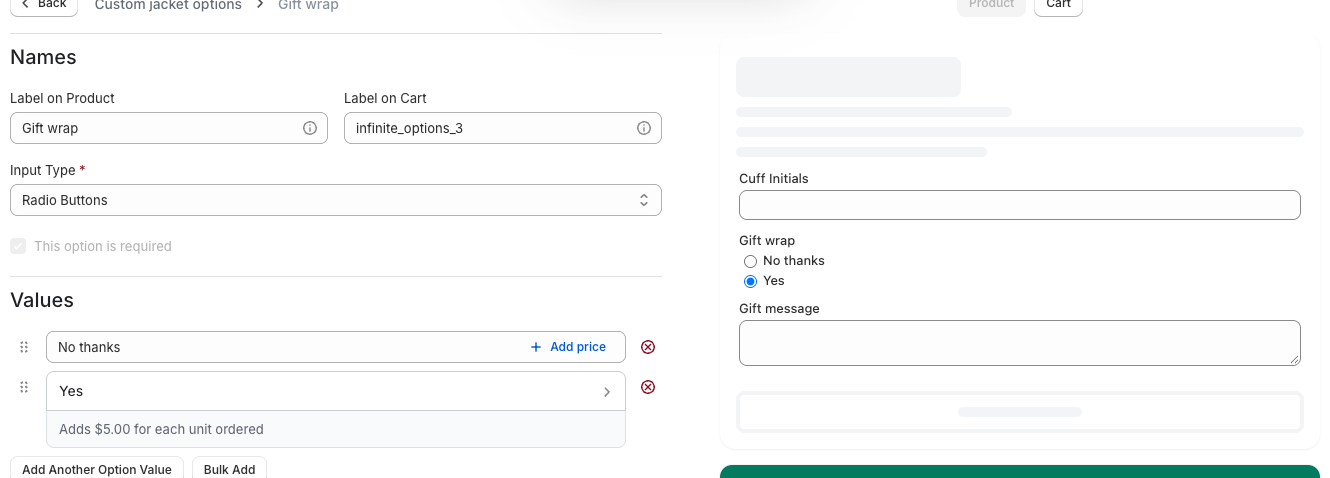
- Price on a choice. You attach a price to an option value on a selectable input: a radio button, checkbox, dropdown or swatch. "Gift wrap: Yes +$5" adds $5 when chosen.
- Text fields get their price from a choice. A text box can't carry a price on its own. Instead, add a choice like "Add engraving? Yes +$10" and use conditional logic so the engraving text box only appears when Yes is selected. See our up-charge and text box setup.
- Native bundling keeps the fee on the item. Behind the scenes the fee is a Shopify product (for example "Engraving fee") linked to the option. With native bundling, Infinite Options uses Shopify's Cart Transform to bundle the fee with the main product as one cart line. Customers can't remove the fee separately, and the order shows the add-on grouped under the item it belongs to. The fee product doesn't need to be published to your Online Store. See native bundling in our docs.
- The product page price updates. On Online Store 2.0 themes, the Dynamic Bundling Price Block shows the price including the selected add-ons, so customers see $45, not $35, before they add to cart.
- Product bundles mode for separate lines. If you want the add-on to appear as its own cart line, for example a gift box that tracks inventory, switch that option to product bundles mode.
Everything the customer chooses or types is saved as line item properties on the cart line, so it shows in the cart, at checkout, on the order in your admin and on packing slips. Option sets apply to many products at once by tag, vendor, product type or a product list.
Infinite Options starts at $12.99/month with a 14-day free trial (as of October 2026).
Setup checklists
These assume Infinite Options with native bundling, but the questions apply to any method.
Engraving
- Add a radio button or switch: "Add engraving?" with "No" and "Yes +$10". Put the $10 on Yes.
- Add a text field, "Engraving text", set to show only when "Add engraving?" is Yes, and make it required.
- Set a maximum character length that matches what fits on the item, for example 20 characters for a pen barrel. Customers can't add to cart over the limit.
- Assign the option set to the products that can be engraved, by tag such as
engravable.
For fonts, placement, monograms and production workflow, see our guide to Shopify product personalization.
Gift wrap and a gift message
- Add a radio button or checkbox: "Gift wrap" with "Yes +$5".
- Add a multi-line text box, "Gift message", that shows only when Gift wrap is Yes. Make it optional so customers can wrap without a note.
- Set a maximum length that fits your card, for example 150 or 200 characters.
- Add the gift message to your packing slip template so whoever packs the order sees it.
- If your wrapping uses a stocked item like a gift box, consider product bundles mode so the box is its own line with its own inventory.
If you only want a free gift message with no fee, you don't need any of the pricing pieces: a plain text field (or a single properties[Gift message] input in your theme) is enough.
Rush production
Decide first whether rush is charged per item or per order, because the setup is different.
- Per item. Add a choice like "Production time" with "Standard (7 to 10 days)" and "Rush (2 to 3 days) +$15". The fee is attached to the item, so three products with rush means three rush fees. Place a test order with a quantity above 1 to see how the fee adds up.
- Per order. If rush should cost a flat $15 no matter how many items are in the cart, an option on each product is the wrong tool, since it will charge more than once. A per-order fee fits better somewhere that applies to the whole order, such as a separate rush shipping rate in your shipping settings, labeled clearly (for example "Rush production + Express shipping").
Either way, make sure the rush choice shows somewhere your production team looks, such as the packing slip.
Gotchas to check before launch
- Set the add-on product's weight to 0 unless it really adds weight. Otherwise a fee can raise the shipping rate.
- Check how discounts apply. A "20% off everything" code may also discount your engraving fee, depending on how the discount is set up. Test a discounted order.
- Check tax on the fee. The fee is a Shopify product with its own "Charge tax" setting. Set it the way engraving or gift wrap is taxed where you sell, then confirm the tax on a test order.
- Show the price in the label. "Yes +$10" is clearer than "Yes", even when the page price updates.
- Test the full path: add to cart, change quantity, check out, then check the order and packing slip.
The methods compared
| Method | Fee tied to the item | Customer can remove the fee alone | Collects text | Variant count | Maintenance |
|---|---|---|---|---|---|
| Variants with a price difference | Yes | No | No, needs a line item property | Doubles per add-on | Low, but grows with products |
| Separate add-on product | No | Yes | No | No change | Low |
| Hidden product with theme code | Partly | Yes, unless more code | Yes, with custom inputs | No change | High, breaks on theme changes |
| Infinite Options, native bundling | Yes, same cart line | No | Yes | No change | Low, no theme code |
| Infinite Options, product bundles mode | Added with the item, separate line | Separate line in the cart | Yes | No change | Low, no theme code |
If you have one product and one yes/no add-on, a variant is often enough. If you have several add-ons, need customers to type something, or sell the same extras across many products, an options app saves time. For a broader look at that decision, see variants vs product options.
FAQs
Can Shopify charge for add-ons without an app?
Yes. You can create variants with a higher price (for example "Gift wrap: Yes (+$5)"), sell the add-on as its own product, or have a developer add a hidden fee product to the cart with theme code.
How do I add a gift message in Shopify?
Add a text field to the product form that saves as a line item property, either with a properties[Gift message] input in your theme or with an options app. It then appears in the cart, at checkout and on the order. To charge for gift wrap with the message, put the price on a "Gift wrap: Yes" choice and show the message box only when it's selected.
Can a text field add a price to a Shopify product?
Not on its own. Line item properties, which is what text fields save as, are just text and don't change the price. Put the price on a selectable choice like "Add engraving? Yes +$10" and show the text field only when that choice is selected.
How do I charge a rush fee once per order in Shopify?
A fee attached to each product charges once per item, so it isn't a good fit for a flat per-order fee. A common approach is a separate, clearly labeled rush shipping rate in your shipping settings, which applies once to the whole order.
Will discount codes apply to add-on fees?
They can. When the fee is a Shopify product, a discount that applies to all products may discount the fee too. Check your discount's eligibility settings and place a test order to confirm.