Holiday gift options on Shopify: gift wrap, gift notes and personalization cutoffs

Short answer
The holiday gift options worth setting up on Shopify are a priced gift wrap choice, a gift note box that appears only when someone picks gift wrap, and, for personalized products, a clear order-by date plus the customer's text or artwork collected on the product page before they check out. Infinite Options handles the gift wrap, the note and the personalization fields. Uploadery collects photos and artwork, and if you want to charge for an upload, you pair it with an Infinite Options option that carries the fee.
Gift options earn twice in November and December: each priced add-on raises the order total, and a gift note or gift wrap that's easy to find saves a customer from emailing you to ask. Personalized items are the harder part, because they need production time and a file or a line of text you can't make up later. This guide covers both, with the setup steps we'd use.
What to offer
| Gift option | Charge for it? | What it needs |
|---|---|---|
| Gift wrap | Usually | A priced choice, a stocked wrap or box, packing time |
| Gift note | Usually free | A text box with a character limit that fits your card |
| Engraving or monogram | Yes | Text fields, production time, an order-by date |
| Photo or artwork print | Often | An upload field, file rules, production time, an order-by date |
Start with gift wrap and a note if you don't have them yet. They're quick to set up and suit almost any product. Personalization takes more planning, so if you sell it, set your cutoff first and work back.
Gift wrap and a gift note
With Infinite Options, gift wrap is a priced choice and the note is a text box that only appears when it's needed. Here's the setup:
- Add the gift wrap choice. Use a checkbox, switch or radio button labeled "Gift wrap", with a value like "Yes +$5". Click Add price on that value and enter the amount.
- Pick the price type. Per quantity charges once for each unit, so 3 wrapped items cost 3 times as much. Flat rate charges once per order however many are ordered, which suits a service like wrapping the whole order in one box (price types in our docs).
- Add the gift note. Use a Large text field labeled "Gift message". Make it optional, so customers can wrap without a note.
- Set a character limit. Match it to the card you actually print or handwrite. A note that's too long for the card means someone on your team has to shorten a stranger's message.
- Show the note only with gift wrap. Click the eye icon on the Gift message field and add a condition: the Gift wrap option contains "Yes". Both fields have to be in the same option set for this to work.
- Add help text. Inline help text under the note, such as "We'll print this on a card inside the box. No prices are included," answers the question before it's asked.
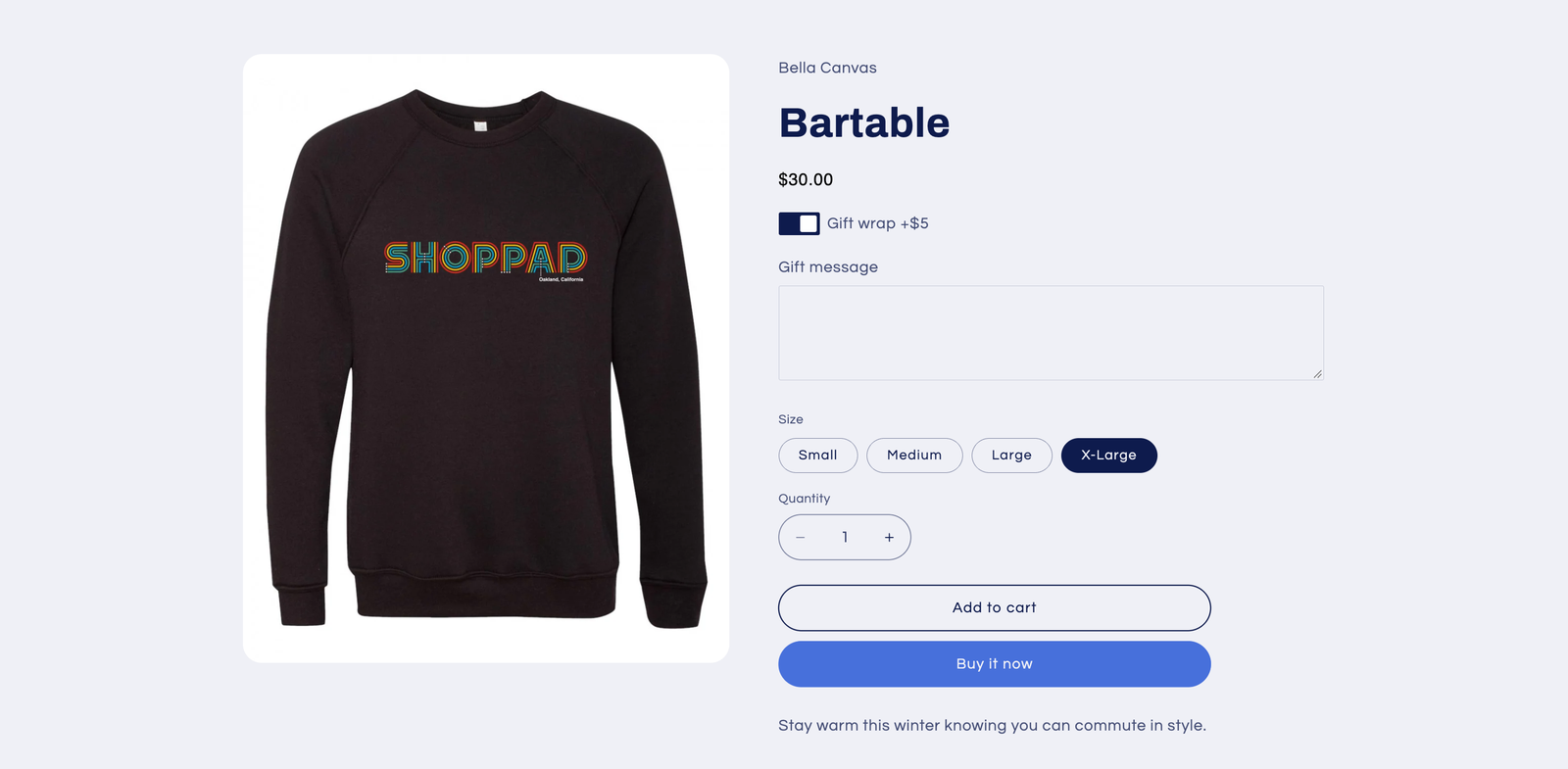
Everything the customer chooses or types is saved as line item properties on the order, so the note shows in the cart, at checkout and on the order in your admin. Add it to your packing slip template so whoever packs the order sees it. How to charge for add-ons in Shopify goes deeper on pricing gift wrap, engraving and rush fees.
Gift options during a sale
If you run a Black Friday or Cyber Monday discount, check what it does to your gift wrap price. With Infinite Options add-on pricing, a Shopify discount that applies to the main product also applies to its add-ons, and it can't exclude them (add-on pricing and Shopify discounts). A 25% off sale makes your $8 gift wrap $6. Price it so that still covers the box and the time, or make gift wrap free for the sale on purpose and say so. What actually gets discounted on Black Friday walks through the numbers and other ways to protect add-on margin.
Personalization cutoffs
A personalized gift that arrives on December 27 is likely to turn into a refund request. The fix is an order-by date that you set, show and stick to.
Work back from the delivery date
Start from the day the gift needs to arrive and subtract, in order:
- Transit time for the slowest shipping method you offer. Each carrier publishes its own holiday shipping deadlines, so check their current pages for this year's dates rather than last year's.
- Production time at your busiest, not your average. If engraving normally takes two days but you'll have three times the orders, plan for that.
- Proofing time, if you send proofs. A customer who replies to a proof two days later uses up two of your days.
- A buffer for reprints, a bad file or a sick day.
The date you land on is your personalization cutoff. It's usually earlier than your cutoff for stock items, and it's fine to have two: one for personalized products and one for everything else.
Show it where the customer decides
A cutoff buried in an FAQ page doesn't stop anyone. Put it on the product page, next to the fields the customer fills in:
- A Header option at the top of the option set adds a heading and a description, for example "Order personalized items by December 10 for delivery by December 24." It doesn't collect anything or go into the cart.
- Inline help text on the engraving or upload field repeats it where the customer is typing.
- Your announcement bar and the confirmation email can carry it storewide.
Those example dates are placeholders. Use the date you worked out above.
After the cutoff
Decide now what happens after the date passes, so you're not deciding on the busiest day of the season. You can change the header and help text to "Personalized orders placed now ship after the holidays", offer a gift card for personalized items instead, or stop showing the personalization fields on those products for the rest of the season. Option sets are assigned to products by tag, vendor, type, URL, handle or all products, so if a holiday option set is assigned by tag, taking that tag off a product stops it from showing there. Whatever you choose, make it obvious on the page.
Collect text and artwork up front
A common holiday delay for personalized products isn't production at all. It's waiting for something the customer meant to send: a photo, a logo, the spelling of a name. Collect it on the product page, before checkout, and make the important fields required.
- Text: in Infinite Options, mark engraving or monogram fields as required and set a character limit that fits the item. Shopify product personalization covers field design, character limits and fonts.
- Photos and artwork: Uploadery adds an upload field to the product page. Set it as required and customers must upload a file before adding the product to their cart (create upload fields).
Uploadery also lets you limit the accepted file types (image, video, audio or document), set a maximum file size, and set image requirements such as an aspect ratio or minimum and maximum dimensions. The in-browser image editor lets customers crop and rotate a photo before they submit it, which saves a round of "can you move it to the left" emails. Our guide to letting customers upload a logo or artwork covers which file to ask for, by print method.
When the order comes in, you download the file from the order details in your Shopify admin or from the Uploadery dashboard. Uploaded files are stored for up to 6 months from the order date and then removed, so download what you need to keep (Uploadery getting started).
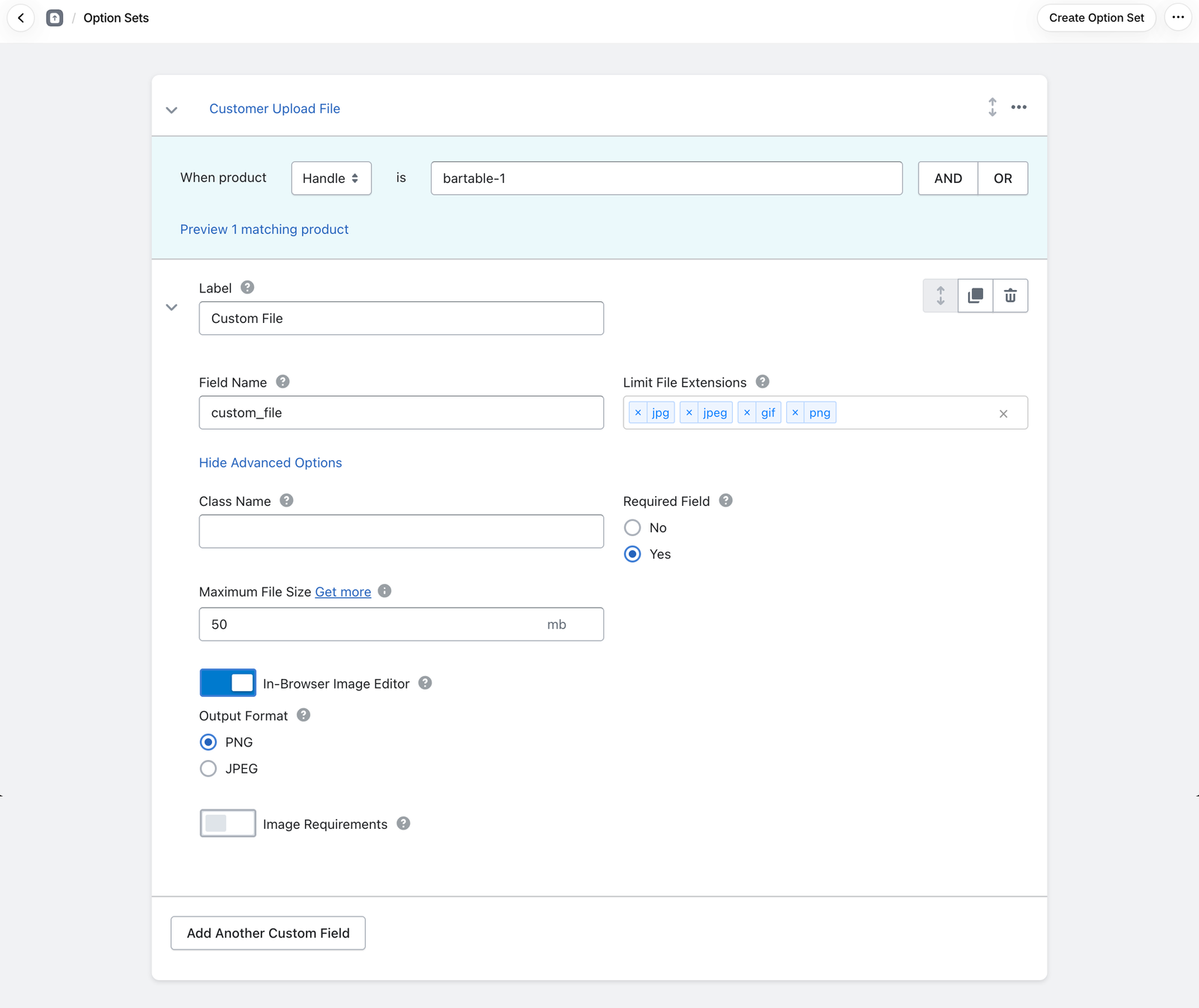
Charging for a photo or artwork upload
Uploadery doesn't have a built-in way to charge for an upload. To add a fee, you combine it with Infinite Options: a choice that carries the price, and an upload field that only appears when that choice is selected. Our docs walk through it in adding a cost to a conditional upload field. In short:
- Create the trigger option in Infinite Options. A checkbox, dropdown or radio button such as "Add your photo", with a value like "Yes +$5". Putting the price in the label keeps it clear.
- Add the price to that value, so the fee is added whenever a customer selects it.
- Assign the Uploadery field to Infinite Options. In the Uploadery dashboard, open the upload field's assignment section and choose Infinite Options as the identifier.
- Import it. In the Infinite Options option set, click Add Option, choose Import from Uploadery and select that field.
- Add the condition. Click the eye icon on the imported upload field and add a condition: the trigger option contains "Yes". Save.
- Test on the live storefront. The preview inside the Infinite Options dashboard won't show the conditional upload field correctly, so check the real product page: the upload field should appear only after "Yes" is selected, and the fee should be in the cart.
Once imported, the upload field can't be edited from Infinite Options. Change it in Uploadery. For more on the difference between a simple upload field and a dedicated upload app, see how to let customers upload files on Shopify.
A holiday gift options checklist
- Add a gift wrap choice with a price and the right price type.
- Add an optional gift note with a character limit, shown only with gift wrap.
- Add the gift note to your packing slip.
- Check what your Black Friday discount does to gift wrap and personalization fees.
- Work out your personalization cutoff from transit, production, proofing and a buffer.
- Show the cutoff on the product page, in the announcement bar and in the confirmation email.
- Make personalization text and upload fields required where you can't make the item without them.
- Set file type and image rules on upload fields.
- Decide what happens after the cutoff, and write the new wording now.
- Place a test order with every gift option and check the order and packing slip.
FAQs
How do I add gift wrap on Shopify?
Add a "Gift wrap" choice to the product with a price on the "Yes" value. You can do that with a variant, a separate gift wrap product, or an options app like Infinite Options, which adds the fee to the same cart line as the product so it can't be removed separately.
How do I add a gift message to Shopify orders?
Add a text field to the product page that saves as a line item property, so it appears in the cart, at checkout and on the order. With Infinite Options, use a Large text field with a character limit and show it only when gift wrap is selected. Then add it to your packing slip template.
Can I charge for a photo upload on Shopify?
Yes, but not with Uploadery alone. Create a priced choice such as "Add your photo: Yes +$5" in Infinite Options, then import the Uploadery field into that option set and show it only when "Yes" is selected.
When should I stop taking personalized orders for Christmas?
Work back from December 24: subtract transit time for your slowest shipping method, using your carriers' published holiday deadlines for this year, then production time at peak volume, proofing time and a buffer. Show the date on the product page next to the personalization fields.