Shopify color swatches: native variant swatches vs swatches for product options

Short answer
Shopify has built-in color swatches, but only for variant options. You give the product a category that has a color attribute, connect your Color option to that category metafield, and a theme that supports swatches shows them in the variant picker as circles or squares. For choices that aren't variants, like thread color, a finish, a gift box ribbon or an add-on with its own price, native swatches can't help, and you need a product options app such as Infinite Options to show those as swatches.
This guide covers both: how to set up native swatches, the reasons they often don't appear, and what to do when the choice you want as a swatch isn't a variant at all.
How Shopify's native color swatches work
Native swatches come from Shopify's product taxonomy. When a product has a category, it gets category metafields, and many categories include a color attribute (Shopify lists Color, Frame color, Upholstery color, Lens color and others). Each color entry can hold a color and an image. When you connect a variant option to that metafield, every option value carries swatch data that your theme can draw.
Shopify's help center puts the main rule plainly: "Swatches can only be used with a variant connected to color category metafield and related color entries." Naming an option "Color" isn't enough on modern themes. The connection to the metafield is what makes it a swatch.
Setting up native swatches, step by step
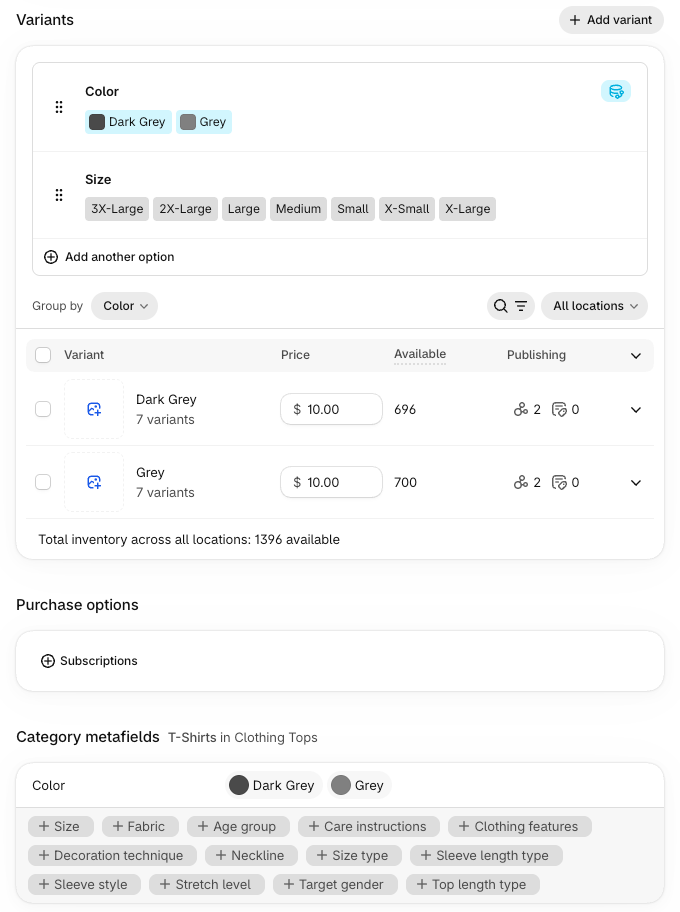
- Pick a category. On the product page in your admin, choose a category that has a color metafield (for example Apparel & Accessories > Clothing > Clothing Tops > Shirts) and save.
- Edit the color entries. In the Category metafields section, edit the default color entries or add your own. Edits apply everywhere that entry is used, so changing "Navy" once updates every product using it.
- Connect the option. When you add variant options, choose the color metafield. Shopify fills the option values from your entries. For products that already have a Color option, use the dynamic source icon to connect it.
- Turn swatches on in the theme. In the theme editor, select the Variant picker block on the product template and choose Circle, Square or None for the swatch style.
- Add a color filter (optional). In the Shopify Search & Discovery app, add a filter with the source Color (Category metafield). Under Manage values you can show swatches, use images, or keep the filter text-only.
You need a theme that supports variant swatches. Shopify's Dawn added swatch support in version 13, with layouts for swatches only, a dropdown with swatches, or no swatches, as described in Shopify's swatches guide for theme developers. Vintage themes need code edits or a developer.
For theme developers: the swatch object
If you build or edit a theme, swatch data reaches Liquid through the swatch object, which has a color and an image. It's available on product option values and on filter values. A theme that ignores it shows plain buttons even when your metafields are set up correctly.
Why your Shopify swatches aren't showing
Most "swatches don't show" threads in the Shopify Community come down to one of these:
- The option isn't connected to the metafield. An option you typed by hand, named Color, is still just text. Connect it to the category color metafield.
- The product has no category, or the wrong one. Without a category that has a color attribute, there's no color metafield to connect.
- The theme doesn't support swatches, or the setting is off. Check the Variant picker block's swatch setting. Older themes may only show swatches for an option named "Color" or "Colour", or need code changes.
- An entry has no color or image. A value without swatch data falls back to text.
- You're looking at a collection page. Product page swatches and product card swatches are separate features. Whether a card shows swatches depends on your theme's product card settings, so check those (or your theme's documentation) before adding an app.
Where native swatches stop
Native swatches are good at one job: showing the colors a product comes in, when each color is a variant with its own stock. They don't cover choices that aren't variants, and a lot of real product pages have those:
- Thread or ink color for embroidery or a monogram, where the shirt color is the variant and the thread color is a separate choice.
- Finishes and materials like wood stain, leather color or fabric, where you don't stock each one and making them variants would multiply your variant count.
- Add-ons with a price, like a ribbon color for gift wrap or a premium finish that costs extra.
- The same picker on many products, like one set of 30 stain colors on every piece of furniture, which native swatches make you set up product by product.
Shopify's variant limit is now 2,048 per product, so in theory you could make every combination a variant. In practice, three colors of shirt times twelve thread colors times sizes adds up fast, and every one of those variants needs a price, SKU and inventory record. We walk through that trade-off in Shopify variants vs product options and the limits themselves in Shopify's variant limit in 2026.
Swatches for choices that aren't variants
A product options app adds fields to the product page that aren't variants. The customer's choice is saved on the order as a line item property, so you see it in the order, on packing slips and in exports. Swatches are one of those field types.
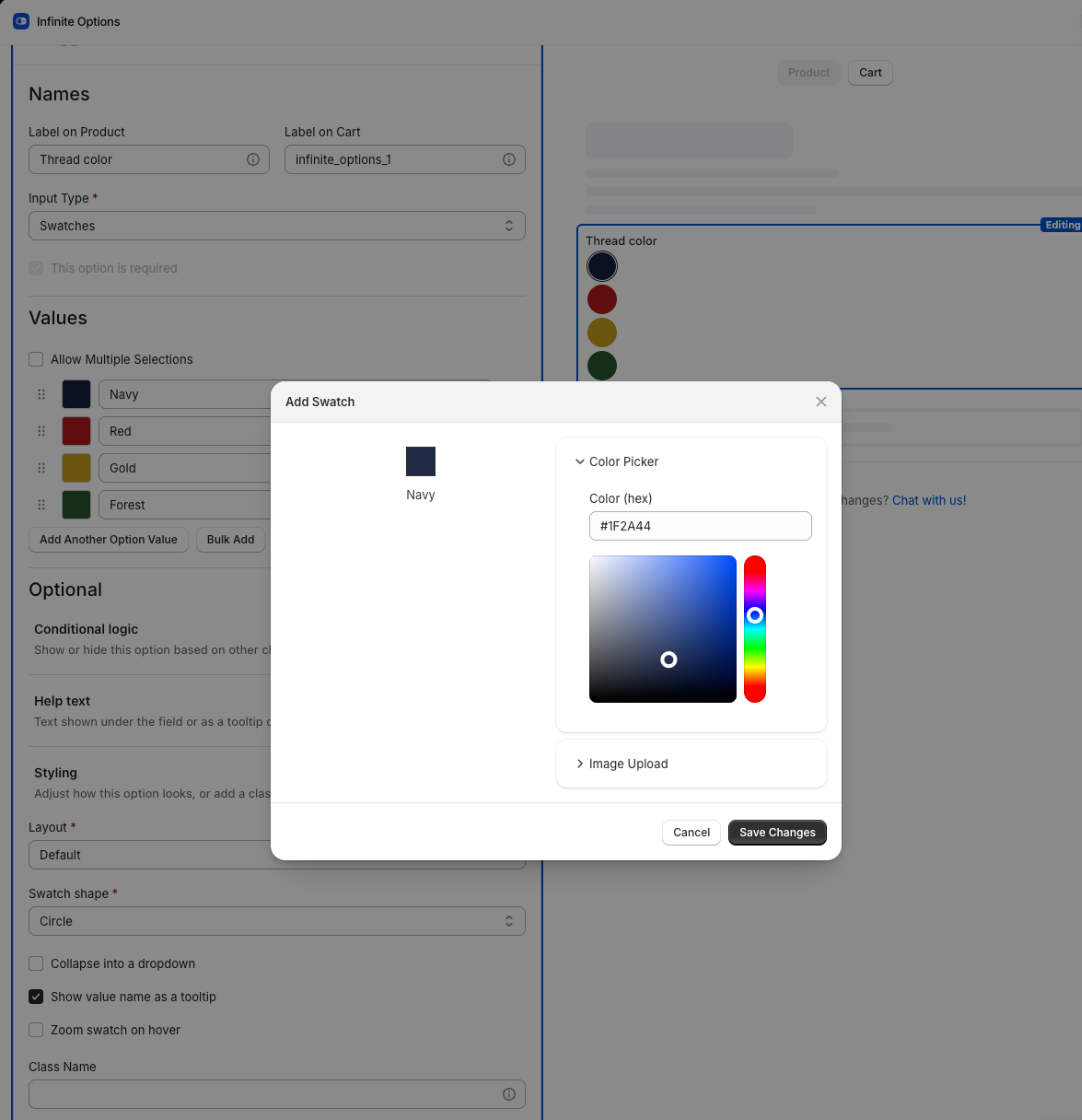
In Infinite Options, you add an option with the Swatches type to an option set, enter the values, and give each value a color (a hex code or the color picker) or an uploaded image (JPEG or PNG, up to 1 MB). The option set applies to products by rules: all products, specific products, or by tag, vendor or type. One set of 30 stain colors can apply to every product tagged "furniture" without touching each product.
Settings that matter for swatches, from the Infinite Options swatch docs:
- Layout and shape: inline or stacked, and square, rounded or circle swatches.
- Collapse into a dropdown: useful when there are dozens of values, so the picker doesn't push the Add to cart button off screen.
- Tooltip: shows each value's name on hover, which helps when two greens look alike.
- Zoom on hover: enlarges the swatch, which helps with fabric and wood grain images.
- Single or multiple selection: a swatch can allow one choice or several.
- Prices: a swatch value can carry an add-on price, so a premium finish can cost more than a standard one.
Swatches also work with conditional logic. You can show a text field only when a customer picks a certain swatch, or show a set of color swatches only after they tick a checkbox. Conditional logic can also react to the Shopify variant the customer picked, so a thread color picker can change with the shirt color. The conditional logic swatch guide has both examples.
Native swatches vs options app swatches
| Native Shopify swatches | Infinite Options swatches | |
|---|---|---|
| What they're for | Variant options (each value is a variant) | Choices that aren't variants |
| Inventory per color | Yes, through variants | No, choices are saved as line item properties |
| Extra price per choice | Through the variant's own price | Add-on price on the swatch value |
| Set up across many products | Per product, though metafield entries are shared | One option set, applied by rules (tag, vendor, type and more) |
| Show or hide based on other choices | No | Yes, with conditional logic |
| Needs | A category with a color attribute and a theme that supports swatches | The app, on any plan (including the free plan) |
Which to use
Most stores that sell customizable products end up using both:
- Use native swatches for the colors you stock and track: the shirt color, the mug color, the phone case color. You get inventory, variant images and collection filters.
- Use option swatches for the choices layered on top: thread color, stain, ribbon, a paid finish, or any picker you want on dozens of products at once.
If a choice changes what you pick off the shelf, it's probably a variant. If it changes what you do to the item after you pick it, it's probably an option. For more on pricing those extra choices, see how to charge for add-ons in Shopify.
FAQs
How do I add color swatches in Shopify without an app?
Give the product a category with a color attribute, connect your Color variant option to the category color metafield, then turn on swatches in the Variant picker block of your theme editor. Your theme has to support variant swatches; Dawn has since version 13.
Why do my image swatches only show when the option is named Color?
Some older themes decide what to show as a swatch by the option's name. Modern themes use the category color metafield instead, so connect the option to that metafield. If your theme still checks the name, it needs a theme update or a code change.
How do I add color swatches to the collection page in Shopify?
That's a theme feature, separate from product page swatches. Look in your theme editor's product card settings for a swatches option. If your theme doesn't have one, it takes theme code or a swatch app built for product cards. Collection filters with color swatches are separate again and are set up in the Search & Discovery app.
Can a color swatch add to the price?
With native swatches, the price comes from the variant, so a different color can have a different variant price. For a choice that isn't a variant, a product options app like Infinite Options can attach an add-on price to a swatch value.