How to cut "where is my order" emails after Black Friday

Short answer
To cut "where is my order" (WISMO) emails after Black Friday, make tracking something customers can do on your store without asking you, and find the problem shipments before customers do. Before November 27, put a tracking page on your store, send every tracking link there instead of to the carrier, and turn on out for delivery and delivered emails. After Cyber Monday, check a short list of problem shipments every day (exceptions, failed delivery attempts and expired tracking numbers) and contact those customers first.
Orders placed between Black Friday on November 27 and Cyber Monday on November 30 ship over the days that follow, so the questions arrive in the week after. Many of them aren't about late packages at all. They come from customers who can't see where their package is, or who got a tracking link that sent them to a carrier page they didn't recognize. Both are fixable now, while you still have time.
If you're new to the term, what WISMO is and why it happens covers the causes and the free fixes. This guide is the Black Friday version: what to set up before the sale, and what to do every day after it.
Why customers ask: the quiet stretch
Shopify can send four shipping emails (Shopify Help Center: customer notifications):
- Shipping confirmation, when you fulfill the order.
- Shipping update, when you add or change tracking on an order that's already fulfilled.
- Out for delivery and Delivered, when a tracking event with that status comes in from the carrier or a fulfillment app. Shopify notes that the timing of those events varies by carrier, and they aren't available for local delivery orders.
There's no email for the part in between. Shopify doesn't send a notification for the In Transit event, when the carrier has picked the package up and it's on its way (Tracktor fulfillment events). And if nothing reports out for delivery or delivered for your carrier, the shipping confirmation can be the last email the customer gets. That quiet stretch is when "where is my order" emails get written, and it gets longer when carriers are busy.
Before Black Friday: four things to set up
1. Put a tracking page on your store
Give customers one place on your store to check an order. With Tracktor, that's a branded tracking page at /apps/tracktor/track, where customers look up an order with their order number and email. You choose a layout, match your brand colors, and can show the estimated delivery date when the carrier provides one (getting started with Tracktor).
Then make it easy to find: add a "Track your order" link to your main menu, footer and contact page. A customer who finds the tracking page before the contact form doesn't need to write to you. How to add an order tracking page to your Shopify store walks through the setup step by step, including the no-app option.
2. Send tracking links to your store, not the carrier
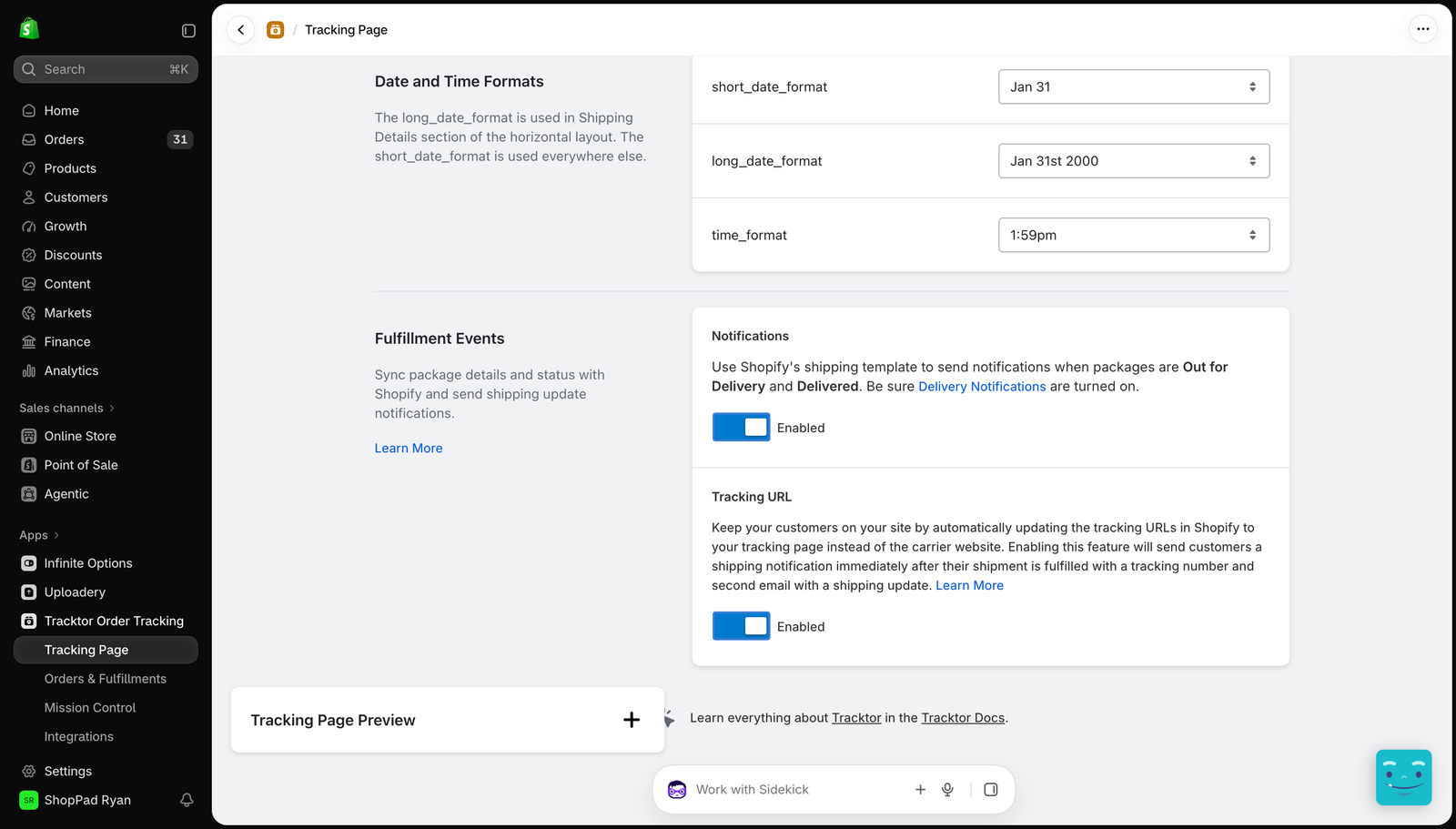
By default, the tracking link on the Order Status page and in Shopify's shipping emails opens the carrier's website. Tracktor's Tracking URL setting redirects those links to your tracking page instead, with the order details already filled in. It covers the Order Status page and the Out for Delivery and Delivered emails (update the tracking link).
For the Order Confirmation and Shipping Confirmation emails, you add a tracking link to the template yourself, under Settings > Notifications in your Shopify admin. Our docs have the snippet to paste (help customers track orders). Start with those two, since they're the emails customers are most likely to open. If you use Shopify Markets, contact our support team before turning on the Tracking URL setting, since it may not be compatible.
For what the Order Status page itself can and can't show, by plan, see what you can change on the Shopify order status page.
3. Turn on out for delivery and delivered emails
These two emails cover the end of the quiet stretch, and a customer who knows the package is out for delivery today doesn't write in to ask. Tracktor tracks each shipment and sends its status back to Shopify as fulfillment events. When a package goes out for delivery or is delivered, Shopify sends its own Shipment out for delivery or Shipment delivered email from your store. Tracktor doesn't send a separate set of emails.
A few things to check before the rush:
- Both notifications are on. In Tracktor, the notifications toggle is on by default after install. In Shopify, confirm that Shipping Out for Delivery and Shipping Delivered are both checked.
- Only one app sends them. Shopify allows one Out for Delivery and one Delivered notification per fulfillment. If another app sends one first, Shopify won't send another.
- Your carriers are recognized. Fulfillment events only sync back to Shopify for carriers Tracktor recognizes. If you ship with a carrier Shopify doesn't support natively, or Shopify shows a carrier name with a service level such as "FedEx 2 Day", set up carrier mapping and map it to the main carrier.
- The emails read well. Edit the templates under Settings > Notifications, then place a test order and look at what customers get.
4. Write your replies now
Some emails will come in anyway. Write a saved reply for each common case before the rush: "it's on the way" with the tracking page link, "the carrier tried to deliver", "the carrier reports a problem", and "tracking hasn't updated". You'll answer faster and more consistently on the busiest days.
After Cyber Monday: check problem shipments every day
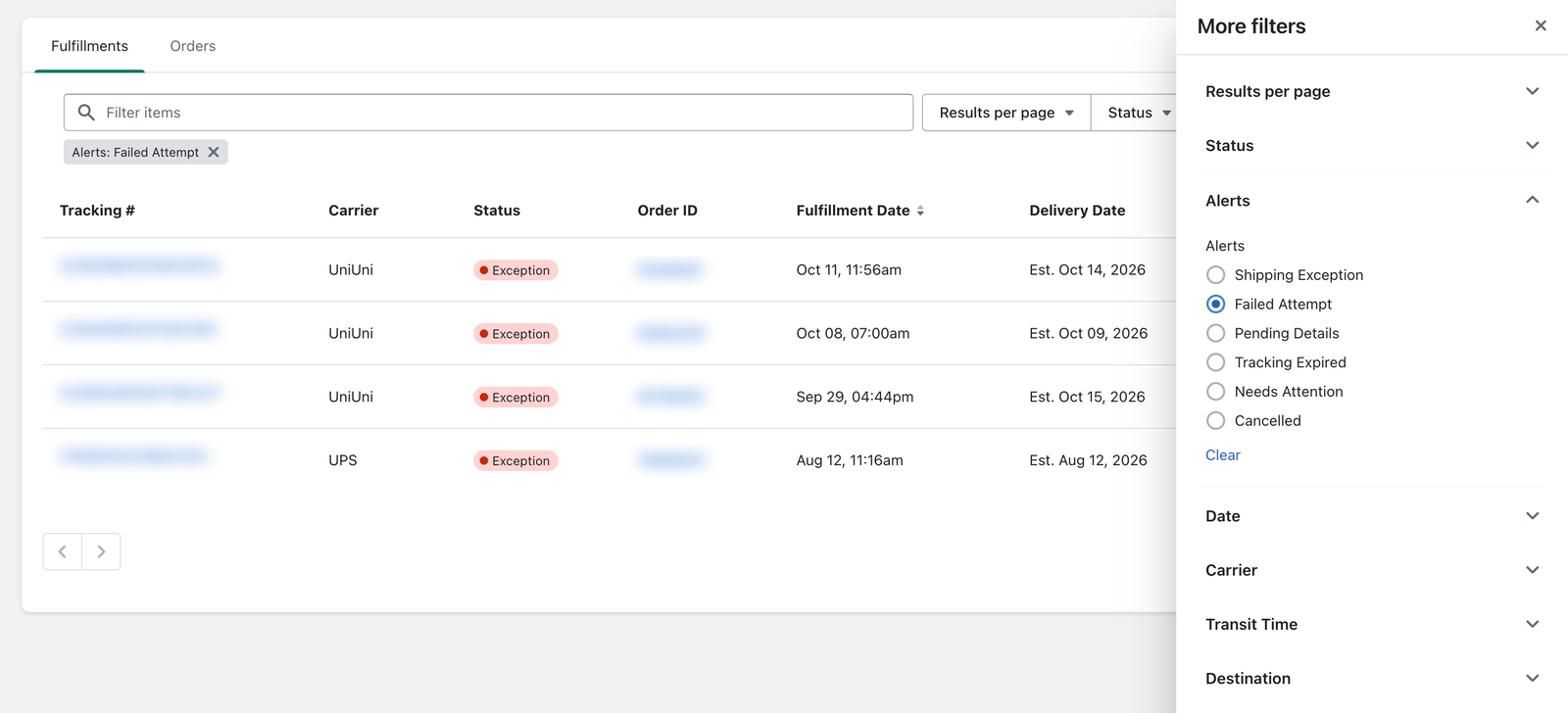
The emails that are hardest to answer are about packages that really are stuck. You can find most of them before the customer does. In the Tracktor dashboard, the Orders and Fulfillments section lets you filter orders by alert, so you can see the shipments with a problem in one list (order alerts: troubleshooting statuses). Check it every morning from the first week of December until your holiday orders are delivered.
| Alert | What it means | What to do |
|---|---|---|
| Shipping Exception | The carrier has a problem with the package: a delivery problem, an incorrect address, or it may be on its way back to you. | Read the tracking details, then tell the customer what happened and what comes next. |
| Failed Attempt | The carrier tried to deliver, but nobody was there to receive it. | Contact the customer to arrange redelivery before the package goes back to you. |
| Tracking Expired | The carrier no longer has tracking for the shipment: the number was deleted, or 30 days passed since the last update. | If it wasn't delivered, update the fulfillment with a new tracking number or contact the carrier. |
| Needs Attention | Tracktor can't get tracking for the order: the number is new, invalid, or assigned to the wrong carrier. | Check the tracking number and carrier on the fulfillment in Shopify. If it shipped with an unsupported carrier, set up carrier mapping. |
| Pending Details | The carrier hasn't updated the tracking yet. | Confirm the order actually shipped, especially if a supplier ships it for you. |
Contacting the customer first turns an angry "where is my order" into a short "thanks for letting me know". It also gives you a chance to fix a wrong address or arrange redelivery before the package is returned.
If you'd rather be told than check, MESA, our Shopify automation app, can run a workflow when a shipment's status changes to Exception, Failed Attempt or Expired, and alert your team. We explain how in this guide on the MESA blog.
Measure it so next year is easier
Count your "where is my order" emails for December and compare them to an ordinary month, per 100 orders, so a busier month doesn't hide the change. Note which questions still came in and why. If most were about one carrier or one shipping method, that's next year's fix. Tracktor's Delivery Reports also show how often customers use your tracking page and how your carriers perform, which tells you whether customers are finding the page at all.
A checklist for the week after Black Friday
- Tracking page live, linked from the menu, footer and contact page.
- Tracking links on the Order Status page and in delivery emails go to your store.
- A tracking link added to the Order Confirmation and Shipping Confirmation emails.
- Out for delivery and delivered emails on, and sent by one app only.
- Carriers mapped, so fulfillment events sync for every carrier you use.
- Saved replies written for the common cases.
- A daily check of Shipping Exception, Failed Attempt and Tracking Expired alerts, with customers contacted first.
FAQs
Does Shopify send an in transit notification?
No. Shopify sends shipping confirmation, shipping update, out for delivery and delivered emails, but no notification for the In Transit event. A tracking page on your store fills that gap, because customers can check whenever they want.
Does Shopify send out for delivery and delivered emails?
Yes, when a tracking event with that status comes in from the carrier or a fulfillment app. If your carrier doesn't report those events to Shopify, an app like Tracktor can create them so Shopify sends the emails. Shopify sends one of each per fulfillment.
What does "tracking expired" mean?
The carrier no longer has tracking information for the shipment, because the tracking number was deleted or 30 days have passed since the last update. If the order wasn't delivered, update the fulfillment with a new tracking number or contact the carrier.
How do I stop tracking links going to the carrier website?
Shopify's tracking links open the carrier's site by default. Tracktor's Tracking URL setting redirects the links on the Order Status page and in the out for delivery and delivered emails to your store's tracking page. For the order and shipping confirmation emails, add a tracking link to the template under Settings > Notifications.