Shopify tracking numbers: how to add, edit and send them to customers
Short answer
To add a tracking number in Shopify, open the order, click Mark as fulfilled, and paste the number into the Tracking number field before you save. If the order is already fulfilled, click Add tracking in its Fulfilled section instead. Leave Notify customer switched on and Shopify emails the number to your customer and shows it on their order status page.
That covers the happy path. This guide is for merchants, and it covers the parts that cause support tickets: numbers that arrive after you've fulfilled, the wrong carrier getting picked, carriers Shopify doesn't know, and orders that never show a number at all.
Where a tracking number comes from
Shopify keeps tracking numbers on the fulfillment, not on the order. Every shipment you send is a fulfillment, and each one can carry its own tracking. A number gets there in one of three ways:
- You buy a label in Shopify. Labels bought in the Shopify admin include tracking automatically, and buying the label marks the order fulfilled (Shopify Help Center).
- A fulfillment app or 3PL ships it. If the service provides tracking information, Shopify says it's added automatically. If the app sends only a number without the carrier and tracking URL, Shopify guesses the carrier, and the guess can be wrong.
- You type or paste it in. You print labels somewhere else (a carrier's site, a shipping tool, the post office counter) and copy the number into Shopify yourself.
The third case is where most mistakes happen, so the rest of this guide focuses on it.
How to add a tracking number when you fulfill an order
These steps follow Shopify's guide to fulfilling your own orders individually:
- In your Shopify admin, go to Orders and open the order.
- In the Unfulfilled section, click Mark as fulfilled.
- Paste the number into the Tracking number field. Shopify might recognize the number's format and pick the carrier for you.
- Check the Shipping carrier. If it's blank or wrong, choose the right one from the drop-down.
- Keep Send a notification to the customer selected if you want Shopify to send the shipping confirmation email. The option only appears when the order has the customer's email address.
- Save the fulfillment.
If you ship part of an order now and the rest later, fulfill only the items in this box. Each shipment gets its own fulfillment and its own tracking number.
How to add tracking to an order that's already fulfilled
It's common to mark an order fulfilled first and get the number later, for example when you fulfill in bulk or a supplier sends numbers in a batch. Shopify's bulk Mark as fulfilled action doesn't take tracking numbers; its bulk fulfillment guide says to add them to each order afterward. To do that:
- Go to Orders and open the order.
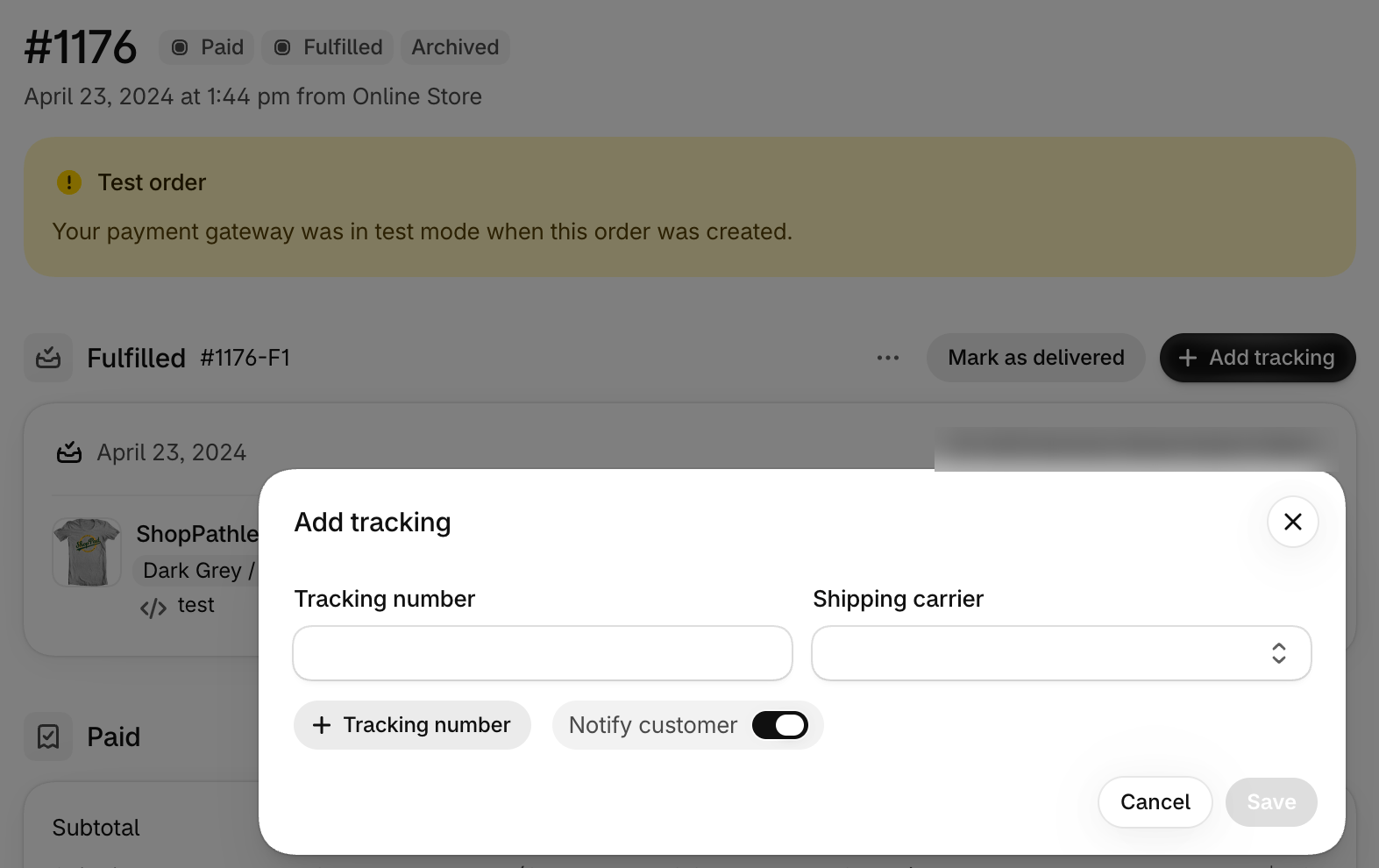
- In the Fulfilled section for that shipment, click Add tracking.
- Enter the number in Tracking number and check the Shipping carrier.
- If the shipment has more than one box, click + Tracking number to add another. All numbers on one fulfillment must be from the same carrier.
- Leave Notify customer switched on to send a shipping update email, or deselect it to add the number quietly.
- Click Save.
In the Shopify mobile app the steps are the same, and you can scan the barcode on the label instead of typing the number.
One limit to know: if an order has no shipping address, Shopify won't let you add a tracking number to it. That usually means a local pickup or digital order, or an order created without an address. Add the address first if the order really is shipping.
How to edit a wrong tracking number or carrier
Typos and wrong carriers are the most common tracking problems, and customers find them before you do. To fix one, open the order and edit the tracking on that fulfillment. Shopify sends the Shipping update email when tracking information changes on a fulfilled order, and you can turn that off for the edit by deselecting the notification option (Shopify Help Center).
Whether to send that email depends on what changed:
- The customer already got a broken number or link: send it, so they get the right one without asking.
- You're only correcting the carrier behind a number that already worked: you can skip it to avoid a confusing second email.
If Shopify keeps picking the wrong carrier, choose the right one from the Shipping carrier drop-down. Shopify says your choice takes priority over its automatic detection (Shopify Help Center).
Carriers Shopify doesn't recognize
Shopify recognizes tracking numbers from hundreds of carriers, including DHL, UPS, FedEx, Canada Post, Australia Post and Evri, and builds the tracking link for you. For a carrier that isn't in the list, select Other and enter the full tracking URL your carrier gave you, including the tracking digits. Shopify uses that URL on the order status page to link to the carrier's tracking page.
Skip the URL and the customer gets a number with nowhere to go, which is a reliable way to get a "where is my order?" email. If this happens a lot, our guide to cutting WISMO tickets covers the other common causes.
What customers see once you add a number
| Where | What the customer gets | What triggers it |
|---|---|---|
| Shipping confirmation email | The tracking number and link | Fulfilling the order with the notification box checked |
| Shipping update email | The new or changed tracking | Adding or changing tracking on a fulfilled order, with the notification box checked |
| Out for delivery and Delivered emails | A status update | A tracking event with that status from the carrier or a fulfillment app (not used for local delivery) |
| Order status page | Live statuses and a map for supported carriers; a link to the carrier's site for others | Any fulfillment with tracking |
| Shop app | Order updates, push notifications and map tracking | Orders sync to the customer's Shop account automatically |
Sources: Shopify's customer notifications and order tracking pages. You can't turn off or edit the notifications the Shop app sends; customers control those in their own Shop settings.
The order status page is where most customers end up, because every shipping email links to it. Our guide to the Shopify order status page explains what you can change on it, by plan.
Why an order shows no tracking number
When a customer says their email had no tracking, it's usually one of these:
- The order was fulfilled before the number was added. The shipping confirmation went out without tracking. Add the number with Add tracking and leave the notification on so they get a shipping update.
- A fulfillment app hasn't sent it yet. Shopify notes that an order with no carrier or number, or with a Requested status, may still be with the fulfillment service. Check with the app or 3PL.
- The notification box was unchecked. The number is on the order, but no email went out. Customers can still see it on the order status page.
- There's no shipping address on the order. Shopify won't accept tracking without one.
- The customer is looking at the wrong email. The order confirmation never has tracking; only shipping emails do.
Sending customers to your store instead of the carrier
Shopify's tracking links work, but for carriers it doesn't fully support they send customers to the carrier's site, and customers who lose the email have to dig for it. A tracking app gives them a page on your own store where they can look the order up.
Tracktor is one option. It reads the tracking number and carrier from each Shopify fulfillment, so you keep adding tracking exactly as described above. Customers look up an order on your store at /apps/tracktor/track with their order number and email, no tracking number needed. If Shopify has the carrier as Other or under a service name like "UPS Ground", Tracktor's carrier mapping lets you tell it which carrier actually shipped the package (Tracktor help docs). For Out for delivery and Delivered updates, Tracktor creates Shopify fulfillment events, and Shopify sends its own emails for them.
You don't need an app to get tracking numbers to customers; Shopify handles that on its own. An app earns its place when "where is my order?" emails are taking up real time, as they often do in the week after Black Friday. Our guide to adding an order tracking page walks through both the no-app and app routes, and Tracktor's App Store listing has current plans.
FAQs
How do I add a tracking number to a Shopify order?
Open the order and click Mark as fulfilled, then enter the number in Tracking number. If the order is already fulfilled, click Add tracking in its Fulfilled section. Check the carrier Shopify picks before you save.
How do I send a tracking number to a customer in Shopify?
Leave Send a notification to the customer selected when you add the number. When you fulfill, that sends the shipping confirmation email; when you add tracking to an order that's already fulfilled, it sends a shipping update email. Both include the tracking number.
Can I add more than one tracking number to a Shopify order?
Yes. For several boxes from the same carrier, click Add tracking on the fulfillment, then + Tracking number for each extra box. For items shipped separately, fulfill each shipment on its own, and each fulfillment gets its own tracking.
Why can't I add a tracking number to an order?
The most common reason is that the order has no shipping address. Shopify doesn't allow tracking numbers on orders without one, such as local pickup or digital orders.
Does Shopify send tracking numbers automatically?
Only when the number is on the fulfillment. Labels bought in Shopify and fulfillment apps that provide tracking add it for you. If you buy labels somewhere else, you have to enter the number yourself.